 SWITCHING SIGNAL
Table of Contents
Introduction: Why Gaming PC Maintenance Matters
Your gaming PC is more than just a machine; it’s an investment, a gateway to immersive experiences, and often a point of pride. But without proper gaming PC maintenance, even the most powerful rigs can suffer from performance drops, overheating, and costly failures.
In this guide, we’ll dive into ten powerful maintenance tips every gamer should know. Master these, and you’ll extend your PC’s lifespan, enjoy smoother gameplay, and save money over time.
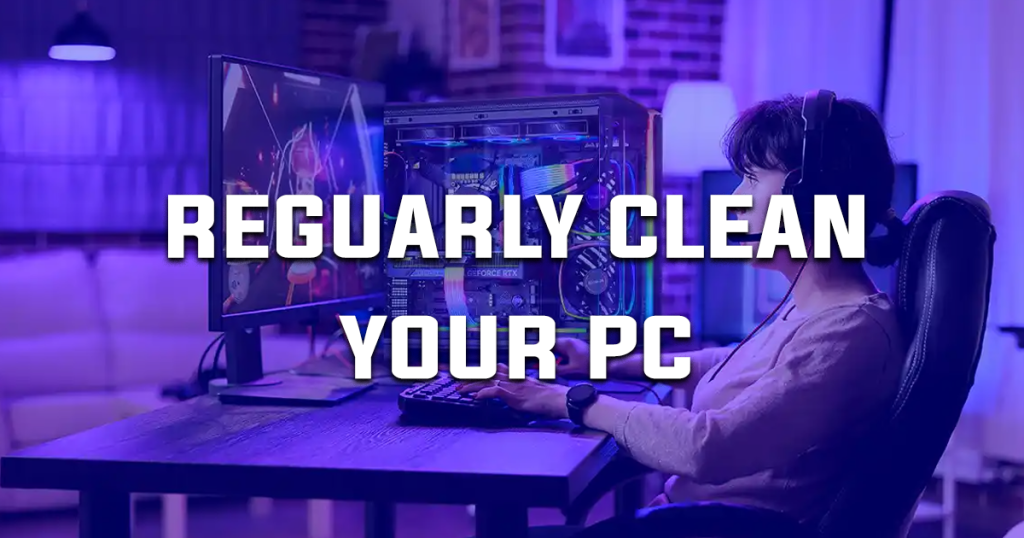
Tip 1: Regularly Clean Your PC’s Interior
Dust is the silent killer of gaming PCs. Over time, it clogs fans, heatsinks, and vents, causing temperatures to rise dramatically.
How to Clean:
- Turn off and unplug your PC.
- Open the case.
- Use compressed air to blow out dust, focusing on fans, CPU coolers, and PSU.
- Wipe surfaces gently with a microfiber cloth.
Make interior cleaning a key part of your gaming PC maintenance routine, ideally every 3-6 months.
Tip 2: Keep Your Software and Drivers Updated
Outdated software can introduce bugs, vulnerabilities, and performance bottlenecks.
Focus Areas:
- Windows Updates: Security patches and performance improvements.
- GPU Drivers: Regularly update NVIDIA or AMD drivers.
- Game Launchers: Update Steam, Epic Games, and other launchers.
Good gaming PC maintenance ensures your system is always optimized for the latest games and features.
Tip 3: Monitor and Manage Temperatures
Heat is one of the biggest enemies of PC longevity. High temps can throttle performance and damage components.
Essential Tools:
- HWMonitor
- MSI Afterburner
- CoreTemp
Set up alerts if temperatures exceed safe levels (typically 80°C for GPUs and CPUs during gaming). Effective gaming PC maintenance means keeping an eye on thermal health.
Tip 4: Replace Thermal Paste When Necessary
Thermal paste degrades over time, leading to poor heat transfer from your CPU/GPU to the cooler.
Signs It’s Time to Replace:
- Idle temperatures are unusually high.
- Fans are constantly spinning up loudly.
Apply fresh, high-quality thermal paste every 2-3 years as part of your gaming PC maintenance plan.
Tip 5: Manage Cables for Better Airflow
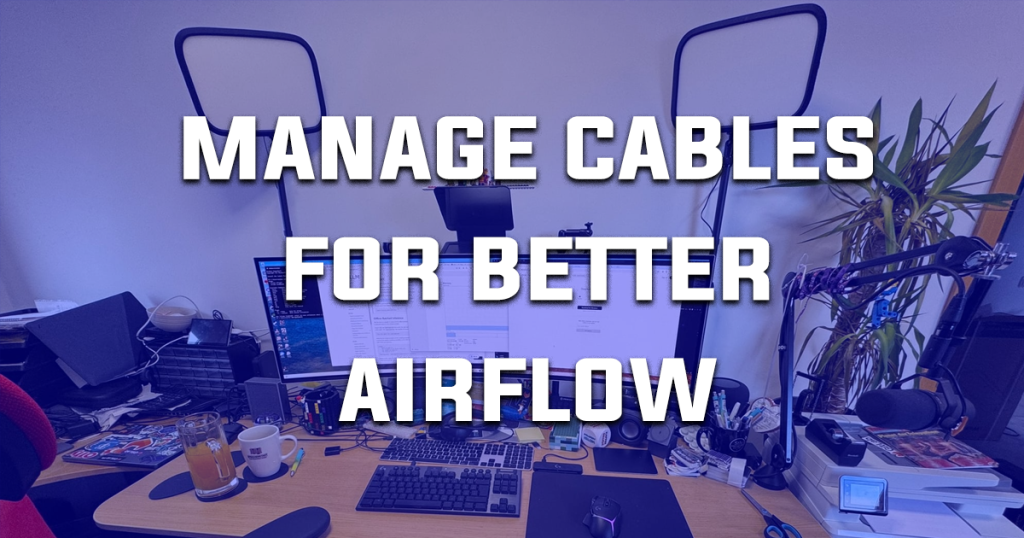
Messy cables don’t just look bad—they block airflow, causing higher internal temperatures.
Cable Management Tips:
- Use zip ties and Velcro straps.
- Route cables behind the motherboard tray.
- Invest in a modular PSU if possible.
Good cable management improves cooling efficiency, a critical aspect of smart gaming PC maintenance.
Tip 6: Update BIOS and Firmware When Appropriate
BIOS and firmware updates can enhance hardware compatibility, security, and system stability.
When to Update:
- After installing new CPUs or GPUs.
- When facing unexplained system crashes.
- If the manufacturer recommends it for your motherboard model.
A cautious approach to firmware updates is part of disciplined gaming PC maintenance.
Tip 7: Check Storage Health and Defragment HDDs
SSDs and HDDs can develop bad sectors or suffer performance loss over time.
Steps to Take:
- Use tools like CrystalDiskInfo to monitor drive health.
- Defragment traditional HDDs regularly (skip this for SSDs).
- Backup important files often.
Storage maintenance is a cornerstone of proper gaming PC maintenance.
Tip 8: Optimize Startup Programs
Too many startup programs can slow down boot times and waste system resources.
How to Optimize:
- Open Task Manager > Startup tab.
- Disable non-essential programs.
Keeping your startup lean ensures faster boots and smoother gaming sessions, a win for gaming PC maintenance.
Tip 9: Secure Your PC with Reliable Antivirus Software
Gamers often download mods, patches, and other files that can carry hidden malware.
Recommended Actions:
- Install a reputable antivirus like Bitdefender or Malwarebytes.
- Schedule regular scans.
- Enable real-time protection.
Cybersecurity is often overlooked but is crucial for complete gaming PC maintenance.
Tip 10: Perform Regular System Cleanups
Over time, junk files and unnecessary programs can clutter your system and impact performance.
Cleanup Tips:
- Use tools like CCleaner (carefully) or Windows Storage Sense.
- Uninstall games and apps you no longer use.
- Clear browser caches and temporary files.
Routine system cleanups keep your rig nimble and are essential for long-term gaming PC maintenance.
Bonus: Signs Your PC Needs Immediate Maintenance
Ignoring maintenance can lead to bigger problems. Watch for these warning signs:
- Frequent crashes or freezes.
- Persistent overheating.
- Strange noises from fans or drives.
- Sudden drops in gaming performance.
Addressing these issues promptly can save your rig from costly repairs.
Final Thoughts: Make Gaming PC Maintenance a Habit
Gaming PC maintenance isn’t just about preserving performance—it’s about protecting your investment and ensuring years of flawless gameplay.
By incorporating these ten powerful tips into your regular routine, you’ll keep your system running like new, avoid unnecessary upgrades, and spend more time gaming rather than troubleshooting.
Commit to a simple monthly and quarterly checklist, and your PC (and your future self) will thank you.
Need Help With Gaming PC Maintenance?
Whether you need a deep clean, component upgrades, or professional troubleshooting, our expert technicians are here to help. Contact Glitchtech Gaming today for personalized maintenance packages and service consultations!
If you want help applying this guide to a PC or upgrade, talk directly with the Glitchtech builders.
Talk to a builder